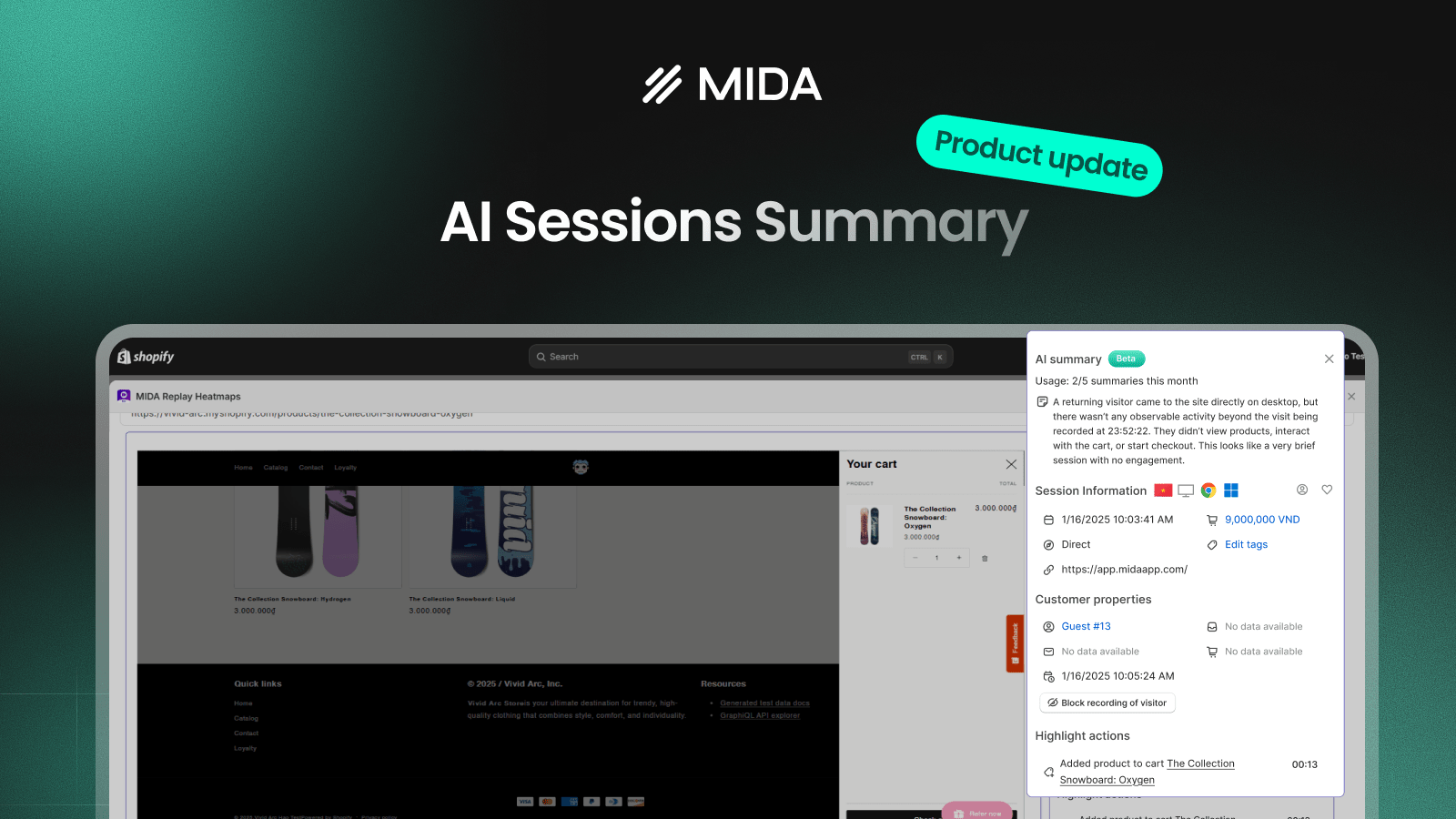

Most session replay tools show you exactly what users did — every click, scroll, and interaction. But when you have hundreds of sessions, the real challenge isn’t collecting data. It’s understanding it.
AI Session Summary in MIDA is designed to solve that problem by turning raw session recordings into concise, actionable insights — helping you quickly understand what happened in each session without watching the entire replay.
What is AI Session Summary?
AI Session Summary automatically analyzes individual session replays and generates a short, structured summary of user behavior.
Instead of manually watching full recordings, you can now instantly answer key questions like:
- What did the user try to do?
- Where did they hesitate or struggle?
- Did they reach checkout or drop off early?
For example, a session summary might highlight that a user:
- Landed on a product page
- Scrolled halfway, clicked on images
- Attempted to add to cart but failed
- Exited before checkout
This gives you immediate clarity — without spending minutes (or hours) watching replays.
How to Use AI Session Summary in MIDA
AI Session Summary is available in both the Session List and the Session Replay Viewer, allowing you to analyze behavior at scale or dive deep when needed.
Generate Summary from Session List
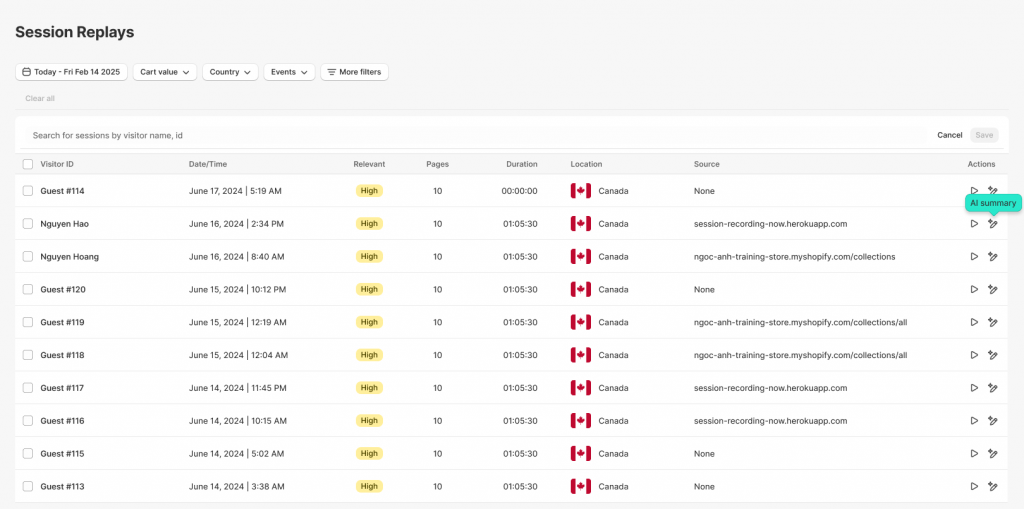
In the Session Replays table, each session includes an AI Summary button.
When you click it:
- The system starts generating a summary
- A loading state is displayed during processing
Once completed:
- The summary appears as a hover tooltip in the summary column
- The AI icon updates to indicate that the summary is available
This allows you to scan multiple sessions quickly and identify which ones are worth investigating further.
For example, instead of opening 20 sessions, you can:
- Generate summaries
- Skim through them in seconds
- Only open sessions with meaningful insights
Generate Summary in Session Replay Viewer
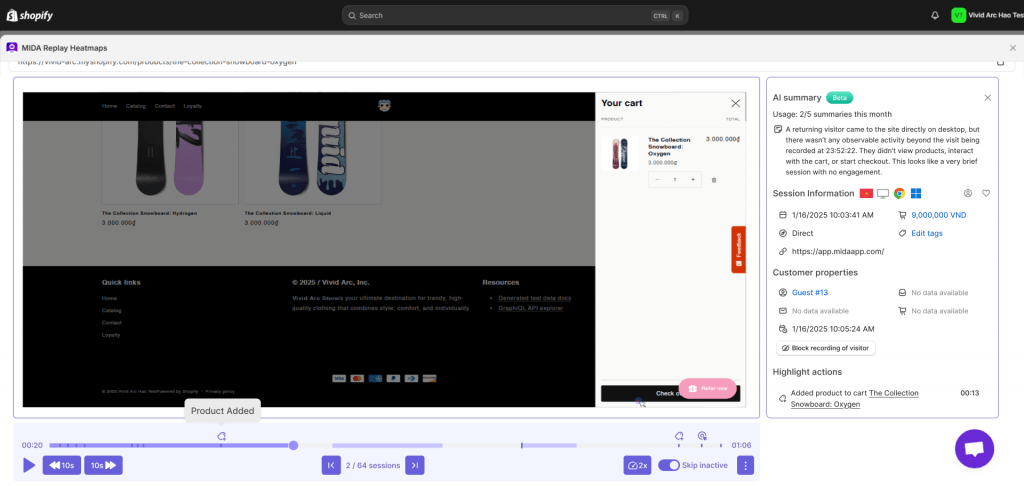
Inside the Session Replay Viewer, AI Summary is integrated into the right-side panel.
You’ll find a “Generate Summary” button within the AI Summary section.
When clicked:
- The system analyzes the current session
- The summary is displayed directly in the panel
Once generated:
- The summary is automatically saved
- It will be instantly available the next time you open the session
This ensures you never have to repeat the same analysis twice.
What Makes AI Session Summary Powerful
AI Session Summary is not just about saving time — it changes how you analyze behavior.
Instead of watching sessions sequentially, you can:
- Scan summaries across dozens or hundreds of sessions
- Identify patterns faster
- Focus only on high-impact sessions
It shifts your workflow from:
“Watching everything” → to “Understanding what matters”
Key Use Cases
Identify drop-off patterns quickly
By scanning summaries, you can spot where users consistently abandon — whether it’s on product pages, cart, or checkout.
Prioritize high-impact sessions
Not all sessions are equally valuable. AI summaries help you quickly identify:
- Failed purchase attempts
- Confusing interactions
- Unusual behavior patterns
Speed up debugging and UX optimization
Instead of guessing where issues occur, summaries highlight friction points so you can investigate faster.
Scale behavioral analysis
As your traffic grows, watching every session becomes impossible. AI Summary allows you to analyze behavior at scale without increasing workload.
AI Session Summary helps you stop spending hours watching replays and start understanding user behavior instantly.
By turning complex session data into clear, digestible insights, it gives you the clarity needed to:
- Identify friction
- Prioritize improvements
- Optimize conversion more effectively
👉 Try AI Session Summary in MIDA today — and turn every session into insight, not just data.


