How to Fix Rage Clicks and Dead Clicks on Your Shopify Store in 2026
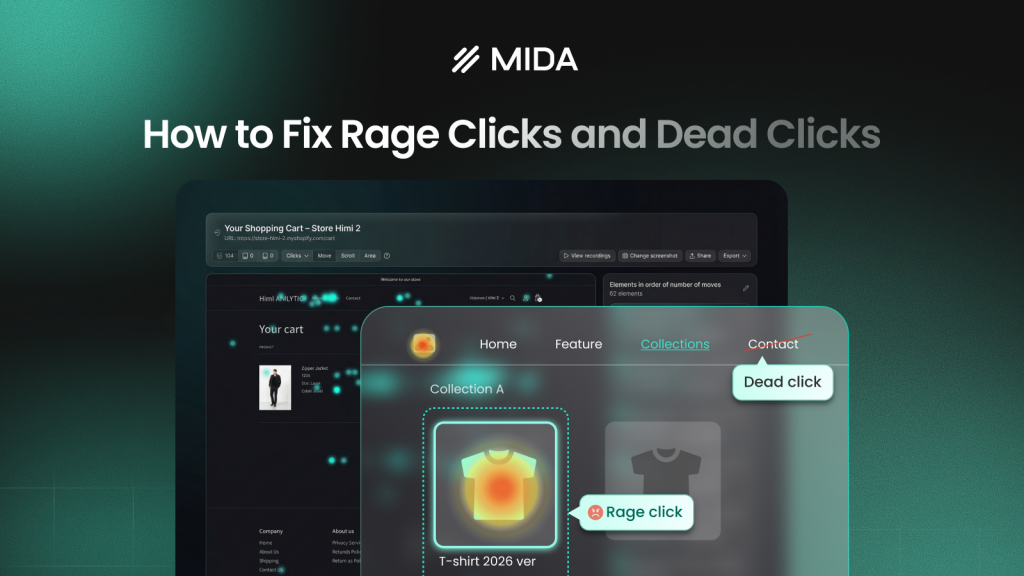
Your Shopify analytics show 500 visitors and a 2% conversion rate, but they don’t show the 47 shoppers who frantically clicked your “Add to Cart” button before giving up. Rage clicks and dead clicks are frustration signals that reveal exactly where your store breaks down—the moments when shoppers wanted to buy but couldn’t.
This guide covers how to identify these signals using heatmaps and session replays, where they typically occur on Shopify stores, and how to fix the specific issues that cause them.
>> You may also like:
- What Is a Mouse Heatmap? Complete Guide with Tools and Examples
- What Are Scroll Maps and How to Use Them for Better Conversions
- Heatmap Analysis: 10 Best Practices for Better Insights
What are rage clicks and dead clicks
Rage clicks and dead clicks are frustration signals that reveal exactly where your Shopify store breaks down—something standard analytics completely misses. Your Google Analytics dashboard might show that 200 people visited a product page and 65% bounced, but it won’t tell you that 40 of them frantically clicked a frozen “Add to Cart” button before giving up.
| Signal | Definition | What it reveals |
| Rage click | Repeated rapid clicks on same element | Something expected to work isn’t responding |
| Dead click | Click on non-interactive element | Design misleads users into thinking it’s clickable |
Rage clicks signal user frustration from repeated clicks
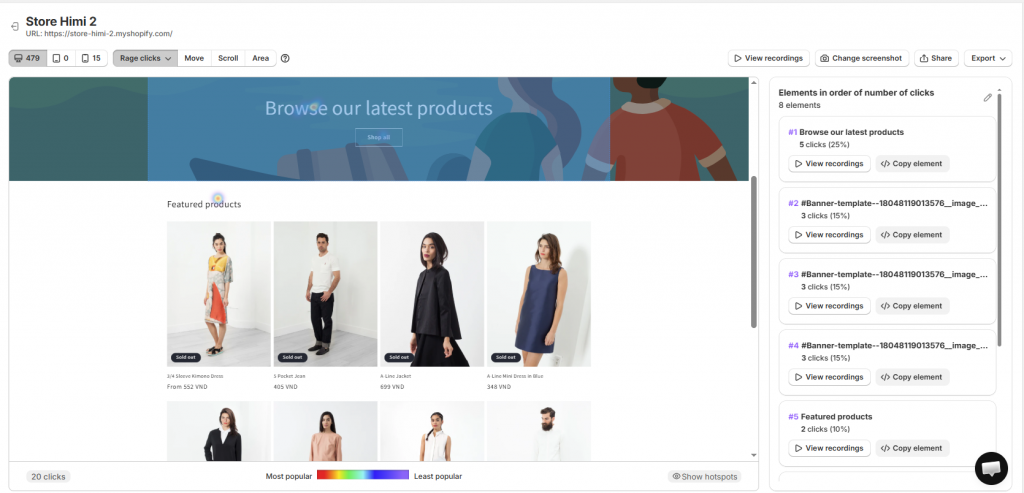
A rage click happens when a shopper rapidly clicks the same spot multiple times because something they expected to work isn’t responding. Picture a customer on your product page trying to select a size variant—they tap the dropdown, but it takes two seconds to load. In that gap, they tap three more times. By the time the dropdown finally opens, they’ve already decided your store is broken.
Dead clicks reveal misleading design elements
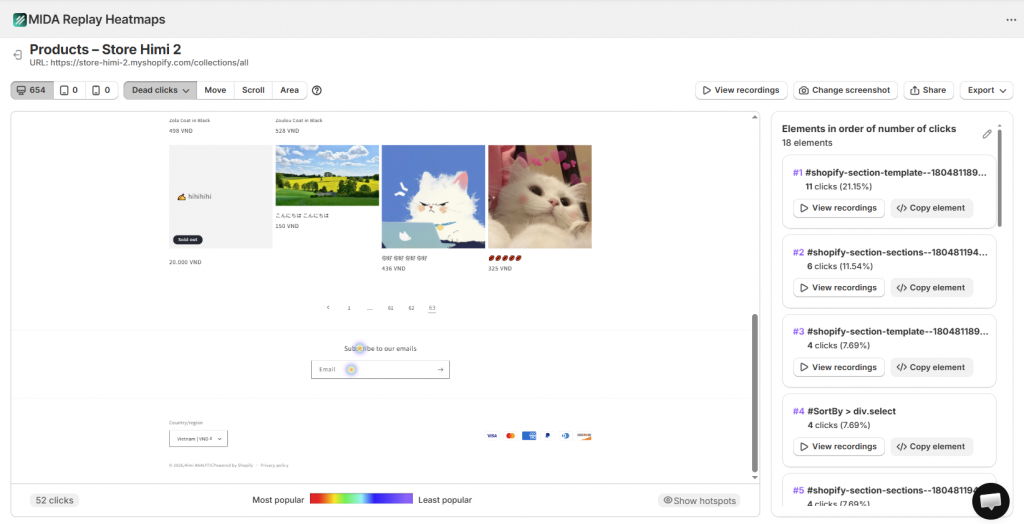
Dead clicks tell a different story. Here, the element works exactly as coded—it just doesn’t do what the shopper expected. Maybe you have a product image that looks zoomable but isn’t, or text styled with an underline that resembles a link but leads nowhere.
You might not realize that your size chart icon looks clickable, but if dozens of shoppers click it expecting a popup and get nothing, you’ve created friction without knowing it.
Why rage clicks and dead clicks hurt your Shopify conversion rate
Every failed click chips away at shopper confidence. The first time something doesn’t respond, they might assume they missed the button. The second time, they start questioning whether your store works properly. By the third attempt, leaving feels easier than fighting the interface.
This chain reaction plays out invisibly in your analytics. You see the bounce rate climb or cart abandonment spike, but you don’t see the frustrated clicking that preceded it. The shopper who rage-clicked your checkout button five times before abandoning looks identical to someone who simply changed their mind—unless you’re watching behavior-level data.
Where rage clicks and dead clicks occur on Shopify stores
Frustration signals tend to cluster in predictable locations, which helps you prioritize where to look first.
Product pages
Product pages generate some of the highest frustration rates because they contain so many interactive elements—variant selectors that lag, image galleries that don’t respond to swipes, and size charts that look clickable but aren’t.
Navigation and search elements
Mega menus that collapse before shoppers can click their target category cause rage clicks. Search bars that don’t auto-suggest or take too long to return results frustrate shoppers who know exactly what they want.
Cart and checkout flow
The cart page and checkout flow represent your highest-stakes real estate. Quantity update buttons that lag, promo code fields that silently reject valid codes, and “Remove item” links that don’t respond all trigger immediate frustration.
Mobile menu and tap targets
Mobile shoppers experience unique frustration patterns. Hamburger menus that require precise tapping, links placed too close together, and swipe gestures that don’t register all generate rage clicks that desktop testing never reveals.
How to identify rage clicks and dead clicks
Standard Shopify analytics can’t find frustration signals—you need behavior-level tools that track individual clicks and show you exactly where problems occur.
Use click heatmaps to spot frustration hotspots
Click heatmaps visualize every tap and click on your store, with warmer colors marking high-activity zones. Tools built for behavior analytics highlight rage clicks and dead clicks as distinct interaction types, showing you exactly which elements cause trouble.
Watch session replays to see frustration in context
Heatmaps show you where frustration happens; session replays show you why. Watching a shopper’s full journey reveals what they did before and after the frustration moment, giving you context that isolated click data can’t provide.
Filter sessions by frustration signals
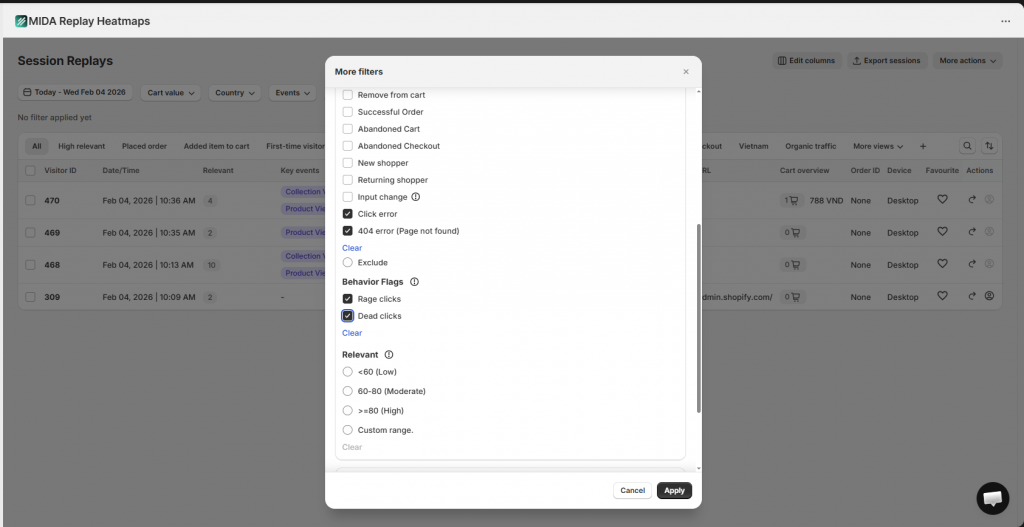
The key to efficient analysis is filtering. Watching random sessions wastes hours—filtering by rage clicks, dead clicks, or frustrated visitor segments surfaces the recordings that actually matter.
Try Mida free to see rage clicks and dead clicks on your store.
How to fix rage clicks on your Shopify store
Rage clicks typically indicate performance or functionality issues. The element exists and works—it’s just not responding fast enough.
Speed up slow-loading elements
Delayed responses cause most rage clicks. When a shopper clicks and nothing happens for two seconds, they click again. Focus on:
- Lazy-loaded images: Ensure interactive elements load before users try to click them
- Third-party scripts: Audit apps that slow down button responsiveness
- Server response time: Check if page elements depend on slow API calls
Repair broken links and buttons
Sometimes the issue is simpler—the element is genuinely broken. A JavaScript error might prevent your “Add to Cart” button from working, or a recent theme update might have broken a navigation link.
Improve button and link responsiveness
Even functional buttons feel broken without visual feedback. When a shopper clicks and sees no response—no color change, no loading spinner, no confirmation—they assume the click didn’t register. Add loading spinners for actions that take time, and hover states that confirm interactivity.
Clarify confusing interactive elements
Ambiguous UI causes hesitation and repeated attempts. If your “Add to Cart” button looks similar to a disabled state, shoppers might click multiple times wondering if it’s working. Use clear button labels and consistent styling to signal interactivity.
How to fix dead clicks on your Shopify store
Dead clicks indicate a design problem rather than a functionality problem. The element works exactly as coded—it just doesn’t match what shoppers expect.
Remove misleading visual affordances
Affordances are visual cues that suggest interactivity. Underlined text implies a link. Shadowed boxes imply buttons. If your design uses these cues on non-interactive elements, you’re creating dead clicks. Audit your pages for underlined text that isn’t a link, images with hover effects but no destination, and colored text that resembles hyperlinks.
Make static elements look non-clickable
The flip side of removing false affordances is ensuring static elements look inert. Remove shadows, button-like borders, and underlines from informational content that doesn’t link anywhere.
Add interactivity where users expect it
Sometimes the best fix isn’t changing the design—it’s adding the functionality shoppers expect. If dozens of users click your product images expecting zoom, adding zoom functionality might convert better than redesigning the images to look non-clickable.
Checkout friction that triggers rage clicks
Checkout deserves special attention because frustration here directly costs orders. A shopper who rage-clicks at checkout was ready to buy—you just lost them at the finish line.
- Unexpected shipping costs: Late-revealed costs cause rage clicks on back buttons as shoppers retreat to reconsider
- Complex checkout forms: Excessive form fields and unclear requirements trigger frustration with each unnecessary field
- Unclear error messages: Vague error states like “Please fix errors above” cause shoppers to click around hunting for the problem
Mobile rage clicks and how to fix them
Mobile shoppers experience amplified frustration because touch interfaces are less forgiving than mouse clicks. A slightly missed tap registers as a failed interaction, and slow mobile networks make lag more noticeable.
Tap targets that are too small
Tiny buttons lead to missed taps that register as rage clicks. Your “Add to Cart” button might work perfectly—shoppers just can’t hit it accurately on a phone screen. Follow minimum tap target guidelines and add padding around interactive elements.
Slow mobile page speed
Mobile networks amplify latency issues. A button that feels responsive on desktop WiFi might feel broken on a 4G connection. Compress images, minimize scripts, and prioritize above-the-fold content.
Overlapping or hidden elements
Sticky headers, pop-ups, and chat widgets can obscure buttons, causing missed taps and frustration. Test your mobile experience with these elements active to ensure nothing blocks critical interactions.
How to prioritize rage click and dead click fixes
You can’t fix everything at once. A structured approach helps you tackle the highest-impact issues first.
- Calculate revenue impact by page: Identify pages that have high frustration signals and also drive significant traffic or revenue
- Assess fix difficulty: Categorize fixes as quick wins (CSS changes, copy updates) versus deeper fixes (app replacements, theme modifications)
- Start with checkout and high-traffic pages: Prioritize checkout, product pages, and the cart above informational pages
Common mistakes when analyzing rage clicks and dead clicks
Ignoring dead clicks entirely
Teams often focus only on rage clicks because they seem more dramatic. But dead clicks reveal equally important design and UX problems—they just signal confusion rather than frustration.
Fixing symptoms without finding root causes
Adding a loading spinner doesn’t help if the underlying script is broken. Use session replays to understand the full context before implementing a fix.
Making changes without measuring results
Compare frustration signals before and after changes. Use element-level analytics to verify that your fix actually reduced rage clicks on the specific element you targeted.
Best practices to prevent frustration signals
Proactive design prevents frustration from occurring in the first place.
Write clear microcopy for buttons and links
Avoid vague labels like “Submit” or “Click Here.” Use specific, action-oriented text like “Add to Cart” or “View Size Guide” that tells shoppers exactly what will happen.
Design with obvious click affordances
Maintain a consistent visual language: buttons look like buttons, links look like links, and static elements look inert. Consistency across pages reduces confusion.
Monitor frustration signals continuously
Set up ongoing monitoring rather than one-time audits. Frustration patterns change as you update your store, add apps, or run promotions.
Stop guessing and start fixing friction on your Shopify store
Rage clicks and dead clicks offer concrete insights into shopper struggles that standard analytics completely miss. Instead of wondering why your conversion rate dropped, you can watch the exact moment a shopper gave up and see precisely which element caused the problem.
Shopify-native tools like Mida surface frustration signals automatically and connect them to outcomes like abandoned checkouts and lost orders. You stop guessing which changes might help and start making fixes based on observed behavior.
Try Mida free to see rage clicks and dead clicks on your store today.
FAQs about rage clicks and dead clicks on Shopify
How many rage clicks on one element indicate a real problem?
Focus on patterns, not absolute counts. If an element consistently triggers rapid clicks across multiple user sessions, it warrants investigation regardless of the total number.
Can third-party Shopify apps cause rage clicks?
Yes—apps that add slow-loading widgets, pop-ups, or interactive elements can introduce lag or broken functionality that triggers rage clicking. If you notice new frustration patterns, audit recently installed apps as a first step.
What is the difference between a rage click and an error click?
A rage click is repeated rapid clicking driven by frustration, while an error click specifically indicates a click that triggered a JavaScript error. Both signal problems, but error clicks point directly to broken code rather than slow or confusing elements.


